

You Have a GeoParquet File and Nothing Opens It
You downloaded a .parquet file from Overture Maps, a government open data portal, or maybe a colleague sent it over. You try to open it. Nothing happens, or whatever does open shows you garbled binary data.
GeoParquet files are regular Parquet files with geospatial data inside. Points, lines, polygons, coordinates. They are used in modern geospatial pipelines because they are fast, compressed, and work well in the cloud. But they are not something you can just double-click.
ParquetReader now supports GeoParquet. You can open any GeoParquet file in your browser in seconds. No install, no account, no command line.
What Makes GeoParquet Different From a Regular Parquet File?
A regular Parquet file stores tabular data: rows and columns, like a compressed spreadsheet. GeoParquet adds a geometry column to that table, storing shapes like points, lines, and polygons in a standardized binary format called WKB (Well-Known Binary).
On top of that, GeoParquet files contain metadata that describes the coordinate reference system (CRS), the bounding box of the dataset, and which column holds the geometry. This metadata is what tools use to correctly interpret and render the shapes.
The format is backed by the Open Geospatial Consortium and has become the default output for major geospatial datasets. Overture Maps ships GeoParquet. Source Cooperative uses it. GDAL supports it. If you work with geospatial data today, you will run into this format.
The problem is that most tools built for Parquet do not know what to do with geometry columns. And most GIS tools do not understand Parquet at all. GeoParquet falls right in the gap between those two worlds.
How to Open a GeoParquet File in Your Browser
Step 1: Go to parquetreader.com.
Step 2: Drag your .parquet file onto the page, or click to select it from your computer.
Step 3: ParquetReader detects the GeoParquet metadata automatically and shows you the schema, geometry details, and a row-level preview.
That is it. No plugin, no Python, no GIS software.
What You Can See Once It Is Open
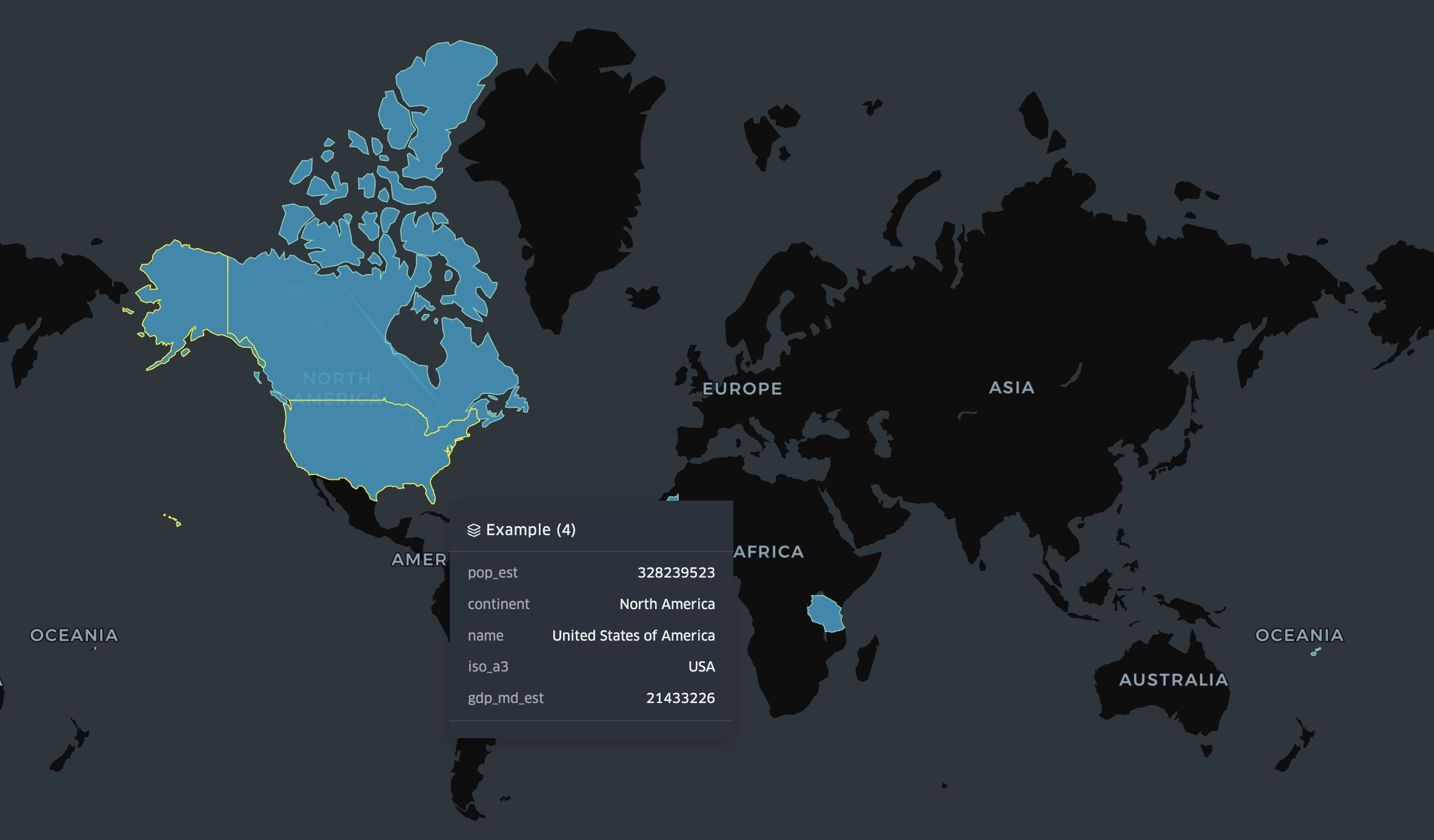
Once your file is loaded, ParquetReader gives you a complete picture of what is inside. The schema panel lists every column with its data type. For a typical GeoParquet file with country boundaries, you might see columns like name, iso_a3, pop_est, gdp_md_est, continent, and a geometry column containing the actual polygon shapes.
Geometry metadata. ParquetReader surfaces the embedded GeoParquet metadata automatically: which column stores the geometry, what geometry types are present (Point, LineString, Polygon, MultiPolygon, and so on), the coordinate reference system, and the declared bounding box of the dataset.
Row-level preview. Browse individual features and see all attribute values alongside the geometry. A country like Fiji shows up as a MULTIPOLYGON because its territory consists of multiple separate island groups. Tanzania shows up as a single POLYGON. You can see this directly in the data without writing a single line of code.
SQL queries. This is where it gets useful. Run DuckDB-powered SQL directly on your GeoParquet file, including spatial functions on the geometry column.
Running SQL Queries on a Geometry Column
One of the more useful things you can do in ParquetReader is query the geometry column directly using spatial functions. Here are a few examples using a real Natural Earth country boundaries dataset.
If you want to know how many features use each geometry type, this tells you instantly:
SELECT
  ST_GeometryType(geometry) AS geometry_type,
  COUNT(*) AS feature_count
FROM data
GROUP BY ST_GeometryType(geometry)
ORDER BY feature_count DESC
On the Natural Earth dataset this returns two rows: POLYGON with the majority of countries, and MULTIPOLYGON for countries like Fiji, Canada, and the United States that have non-contiguous territory. A quick sanity check that tells you the structure of the whole dataset in one query.
You can also filter by geometry type and combine it with attribute columns. For example, to get all island nations and archipelagos stored as multipolygons, sorted by population:
SELECT
  name,
  iso_a3,
  pop_est,
  ST_GeometryType(geometry) AS geometry_type
FROM data
WHERE ST_GeometryType(geometry) = 'MULTIPOLYGON'
ORDER BY pop_est DESC
Or filter by attribute and rank by a numeric column, like the largest economies on a specific continent:
SELECT
  name,
  iso_a3,
  pop_est,
  gdp_md_est
FROM data
WHERE continent = 'Africa'
ORDER BY gdp_md_est DESC
LIMIT 10
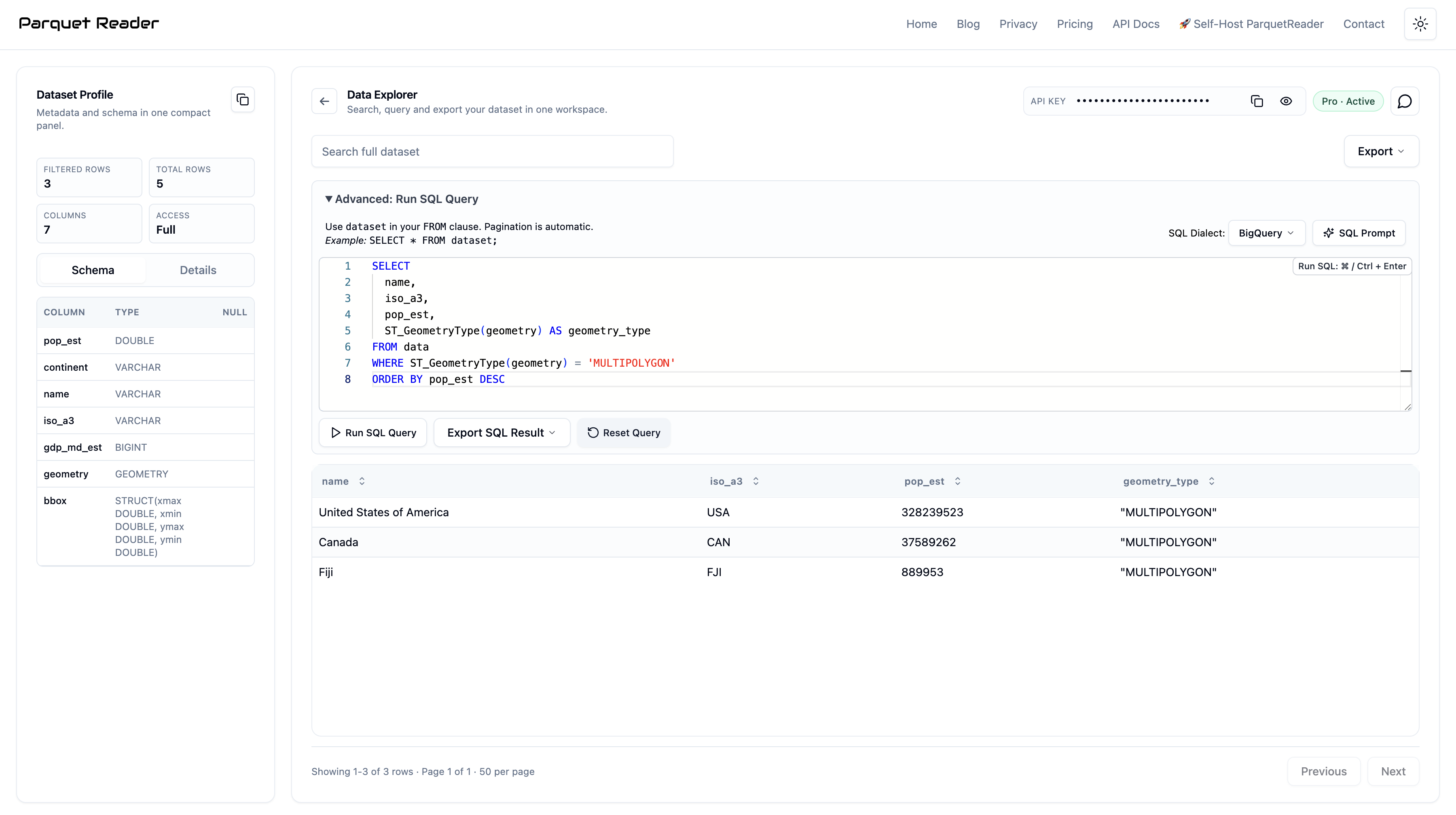
Querying a GeoParquet file in ParquetReader using ST_GeometryType to count features by geometry type.
All of this runs in the browser against the actual file. No database to set up, no connection string, no dependencies.
Query Your Data, Then Take It With You
Once you have a query result you are happy with, you can export it directly. Whether you need the data as CSV to open in a spreadsheet, as JSON to feed into an API or web application, or back as Parquet to pass on to the next step in your pipeline, all three formats are available as a one-click download.
This is particularly useful when you are working with a large GeoParquet file but only need a specific subset. Filter down to the features you actually need using SQL, then export just that result. No scripting, no intermediate files, no conversion step.
For example, after filtering African countries by GDP and getting the result you want, you export it as CSV and share it with someone who has never heard of GeoParquet. They open it in Excel. Done.
What the Geometry Data Actually Looks Like
When you open a GeoParquet file, the geometry column stores shapes in WKB format internally. ParquetReader renders them as readable WKT so you can actually inspect individual features. A country with a single contiguous border like Tanzania looks like this:
POLYGON ((33.90371 -0.95, 34.07261 -1.05981, 37.69868 -3.09698, 37.7669 -3.67712, ...))
A country like Fiji, whose territory spans multiple island groups on both sides of the 180th meridian, is stored as a MULTIPOLYGON grouping several separate shapes under a single feature:
MULTIPOLYGON (((180 -16.067, 180 -16.555, 179.364 -16.801, ...)), ((178.125 -17.504, ...)), ((-179.793 -16.020, ...)))
Being able to see the raw geometry alongside attribute columns like name, continent, and pop_est, and query across all of them at once, is what makes this useful for a quick sanity check. You do not need to render a map to know whether the data is structured correctly.
Who Actually Uses GeoParquet?
GeoParquet has moved from niche format to practical standard faster than most people realize. Here is where it keeps showing up:
Overture Maps Foundation distributes its global map dataset as GeoParquet. If you are working with Overture data for buildings, roads, places, or administrative boundaries, you are working with GeoParquet.
Government open data portals are increasingly publishing spatial datasets in this format because it is smaller and faster than Shapefile or GeoJSON at scale.
Cloud-native geospatial pipelines built on tools like GDAL, Fiona, GeoPandas, or DuckDB with the spatial extension all produce and consume GeoParquet natively.
Data engineers working on location data, logistics, urban analytics, or any domain that mixes tabular and spatial data are reaching for GeoParquet as their go-to interchange format.
If you landed here because a file came from one of these sources, you are in the right place.
Built for the Quick Check, Not the Full Workflow
Most geospatial tools are built for doing serious work with spatial data. That is fine, but it means they come with real setup cost. When you just received a file and want to know what is in it, that overhead does not make sense.
ParquetReader is for the moment before the work starts. When you want to confirm the schema is right, check the geometry types, run a quick query, and get the result out in a format you can actually use. Fast, disposable, no setup.
It is not a replacement for your full geospatial stack. It is what you reach for first.
Common Questions About GeoParquet Files
Is it safe to upload my GeoParquet file?
Your file is processed in a temporary session and never stored. There is no account, no file history, and nothing persists after your session ends. If you are working with sensitive data, there is also a self-hosted version you can run on your own infrastructure.
What geometry types are supported?
ParquetReader handles all standard GeoParquet geometry types: Point, MultiPoint, LineString, MultiLineString, Polygon, MultiPolygon, and GeometryCollection.
Which spatial functions can I use in the SQL editor?
ParquetReader uses DuckDB with the spatial extension, which supports functions like ST_GeometryType, ST_Area, ST_Length, ST_Centroid, ST_AsText, and more. Attribute filtering, grouping, and aggregation all work as you would expect.
Can I export my query results?
Yes. After running a query you can export the results as CSV, JSON, or Parquet. Useful when you need to hand off a filtered subset of the data to someone else or load it into another tool.
What if my file has millions of features?
You can read all of it for free, including the complete schema with geometry metadata, and run spatial SQL over every feature. Exporting the results needs a Day Pass, which unlocks exports for 24 hours.
Does this work with regular Parquet files too?
Yes. ParquetReader supports Parquet, GeoParquet, Avro, ORC, Feather, CSV, JSON, JSONL, Excel, GeoJSON, NetCDF, and Arrow/IPC. GeoParquet is detected automatically when the metadata is present.
The Fastest Way to Inspect a GeoParquet File
GeoParquet is becoming the standard format for geospatial data in the cloud. That is a good thing for data engineers and analysts. It is less great if you just received a file and have no idea what is inside it.
You should not need serious tooling just to answer basic questions. What columns does it have? What is the CRS? How many features? Are the geometries polygons or multipolygons? Does the data look right?
Open ParquetReader, drop your GeoParquet file in, and find out in seconds.